
Starting your graphic design journey can feel overwhelming with so many software options available. Whether you’re looking to create social media graphics, design a logo, or edit photos, choosing the right tool is crucial for your creative success. This guide breaks down the best graphic design software for beginners, focusing on user-friendly interfaces, affordable options, and essential features to help you start creating professional-looking designs without the steep learning curve.
Read Also: Web Design Best Practices 2025
Why Choosing the Right Graphic Design Software Matters

The right graphic design software can make the difference between frustration and creative flow, especially when you’re just starting out. Beginners need tools that balance functionality with ease of use, providing enough features to create professional designs without overwhelming complexity.
Software that’s too complex might discourage you before you even begin, while overly simplified tools might limit your growth as you develop your skills. Finding that sweet spot is essential for building confidence and developing your design abilities.
Additionally, cost is a significant factor for many beginners. While professional-grade software offers comprehensive features, many free or affordable alternatives provide excellent functionality for those just starting their design journey.
How We Evaluated Beginner-Friendly Design Software
To help you find the perfect match for your needs, we’ve evaluated each software option based on these key factors:
- Ease of Use: Intuitive interface and gentle learning curve suitable for beginners
- Affordability: Cost-effective options including free versions and reasonable subscription plans
- Essential Features: Core tools needed for common design tasks without overwhelming complexity
- Templates & Resources: Pre-designed templates and elements to jumpstart your projects
- Learning Support: Tutorials, guides, and community resources to help you master the software
- Growth Potential: Room to expand your skills without quickly outgrowing the software
Types of Graphic Design Software
Before diving into specific recommendations, it’s helpful to understand the main categories of graphic design software:
Raster Editors
Work with pixel-based images ideal for photo editing and digital painting. Best for detailed images with complex color gradients and photographs.
Vector Editors
Create scalable graphics using mathematical equations. Perfect for logos, illustrations, and designs that need to be resized without losing quality.
All-in-One Design Tools
Combine multiple design capabilities with template-based approaches. Great for social media graphics, presentations, and marketing materials.
Understanding which type of software best suits your projects will help narrow down your options and focus your learning efforts.
Read Also: What is SEO and How Does It Work?
1. Canva: The Ultimate Beginner-Friendly Design Tool
4.8
Excellent for beginners
Ease of Use: 4.9
Templates & Resources: 4.8
Value for Money: 4.5
Growth Potential: 4.0
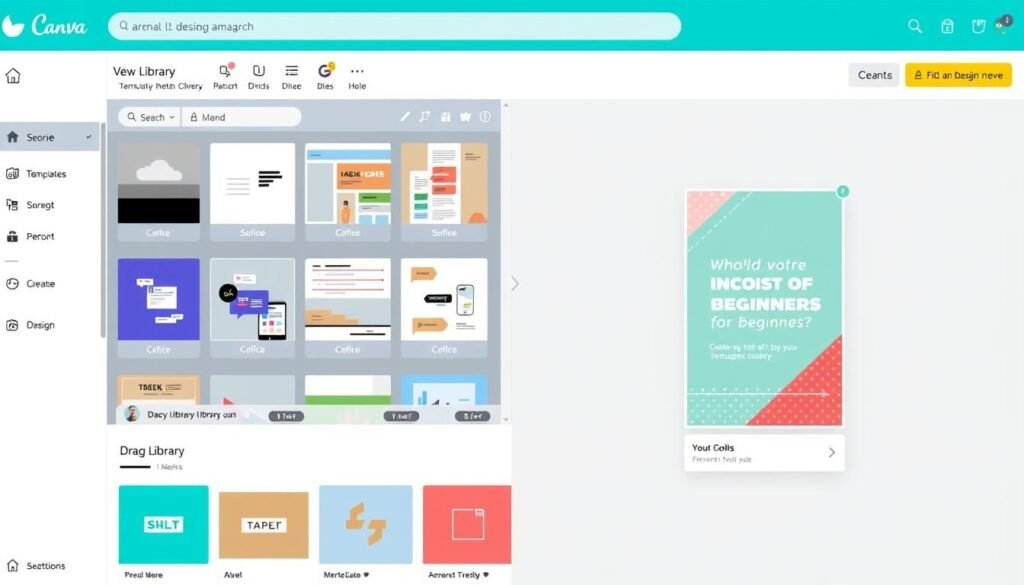
Canva has revolutionized graphic design for non-designers with its intuitive drag-and-drop interface and extensive template library. This browser-based tool makes creating professional-looking designs incredibly accessible, even if you have zero design experience.
Key Features
- Drag-and-drop editor that requires no technical skills
- 250,000+ free templates for social media posts, presentations, flyers, and more
- Extensive library of free photos, illustrations, icons, and fonts
- Brand Kit feature to maintain consistent branding (Pro version)
- Background remover and Magic Resize tools (Pro version)
- Collaboration features for team projects
Best For
Canva excels at creating social media graphics, presentations, posters, infographics, and marketing materials. It’s perfect for small business owners, social media managers, students, and anyone who needs to create visual content without design expertise.
Pros
- Extremely user-friendly with virtually no learning curve
- Generous free version with plenty of templates and elements
- Works on any device with a web browser
- Regular updates with new features and templates
Cons
- Limited advanced design capabilities compared to professional software
- Some premium features and templates require a subscription
- Less suitable for complex illustrations or detailed photo editing
Pricing
Canva offers a generous free plan that’s sufficient for many beginners. The Pro plan ($12.99/month or $119.99/year) unlocks premium templates, the background remover tool, and 100GB of cloud storage.
Ready to create stunning designs with zero experience?
Canva’s intuitive platform makes design accessible to everyone. Start with the free version to explore its capabilities.
2. Adobe Express: Professional Quality Made Simple
4.6
Great for beginners
Ease of Use: 4.5
Templates & Resources: 4.7
Value for Money: 4.3
Growth Potential: 4.5
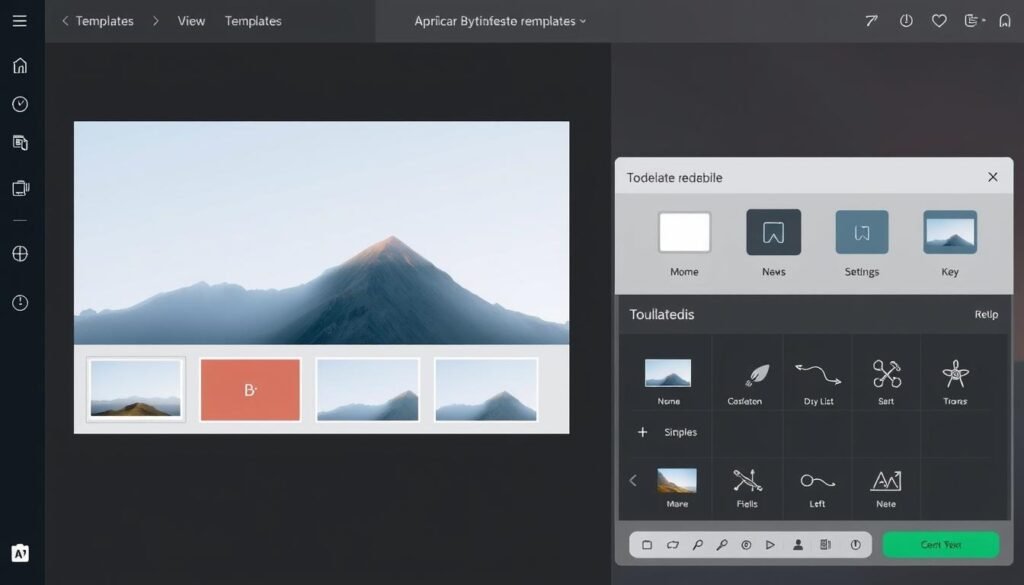
Adobe Express (formerly Adobe Spark) brings Adobe’s professional design capabilities to beginners in an accessible format. It offers a simplified experience compared to Adobe’s professional tools like Photoshop or Illustrator, while still delivering high-quality results.
Key Features
- Quick-edit templates for social media, web pages, and print materials
- Access to Adobe Fonts and Adobe Stock photos
- One-click background removal and other AI-powered tools
- Animation capabilities for creating simple motion graphics
- Integration with other Adobe Creative Cloud apps
- Content scheduling for social media posts
Best For
Adobe Express is ideal for social media content creators, small business owners, and marketing professionals who need professional-looking designs without the steep learning curve of Adobe’s professional tools. It’s also a great entry point for those who might eventually transition to Adobe’s more advanced software.
Pros
- Professional-quality templates and design assets
- Generous free plan with essential features
- Seamless integration with Adobe Creative Cloud
- Regular updates with new features and templates
Cons
- Some advanced features require a premium subscription
- Less extensive template library compared to Canva
- Limited advanced customization options
Pricing
Adobe Express offers a free plan with limited features. The premium plan costs $9.99/month and includes advanced features like premium templates, background removal, and more storage.
Create professional designs with Adobe quality
Experience Adobe’s design power in a simplified package. Perfect for creating stunning visuals with minimal effort.
3. Figma: Collaborative Design for Beginners and Pros
4.5
Great for UI/UX design
Ease of Use: 4.0
Collaboration Features: 4.9
Value for Money: 4.5
Growth Potential: 4.8
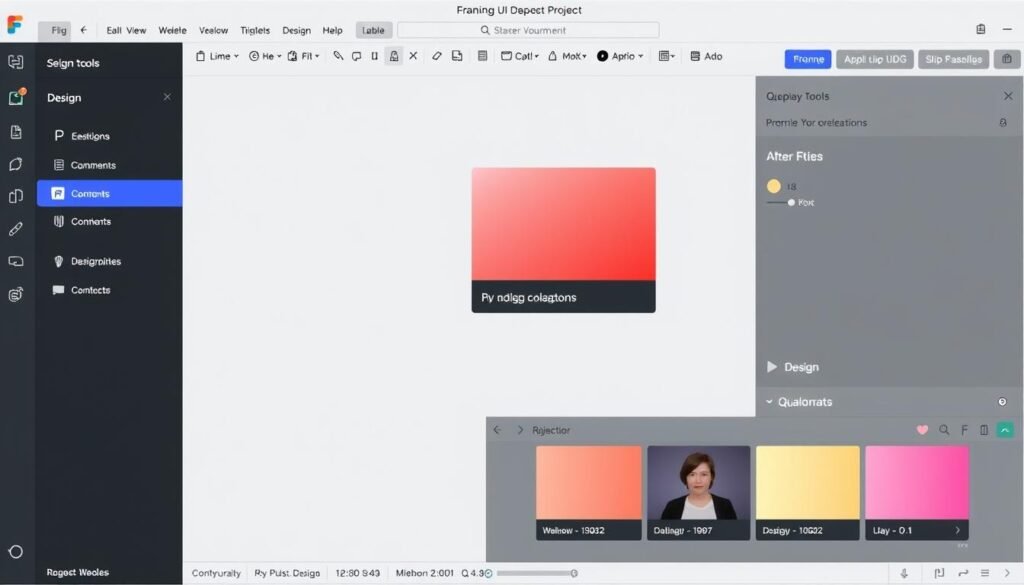
Figma has transformed the design industry with its collaborative approach to design. While it has a slightly steeper learning curve than Canva or Adobe Express, it offers tremendous value for beginners interested in UI/UX design, with room to grow into professional-level work.
Key Features
- Real-time collaboration with multiple designers
- Powerful vector editing tools
- Prototyping capabilities to create interactive designs
- Component libraries for consistent design systems
- Extensive plugin ecosystem to extend functionality
- FigJam for collaborative brainstorming and planning
Best For
Figma is perfect for aspiring UI/UX designers, web designers, and product designers. It’s also excellent for team projects where multiple people need to collaborate on designs. The software shines for website mockups, app interfaces, and interactive prototypes.
Pros
- Browser-based with nothing to install
- Generous free plan for individuals and small teams
- Industry-standard for UI/UX design
- Excellent documentation and learning resources
Cons
- Steeper learning curve than template-based tools
- Less suitable for print design
- Limited offline capabilities
Pricing
Figma offers a generous free plan that allows unlimited files and three active projects. The Professional plan starts at $12 per editor per month (billed annually) for unlimited projects and more features.
Design and collaborate in real-time
Start your UI/UX design journey with the industry’s leading collaborative design tool. Perfect for learning marketable design skills.
4. GIMP: Free Photoshop Alternative for Beginners
4.2
Good for photo editing
Ease of Use: 3.5
Features: 4.4
Value for Money: 5.0
Growth Potential: 4.5
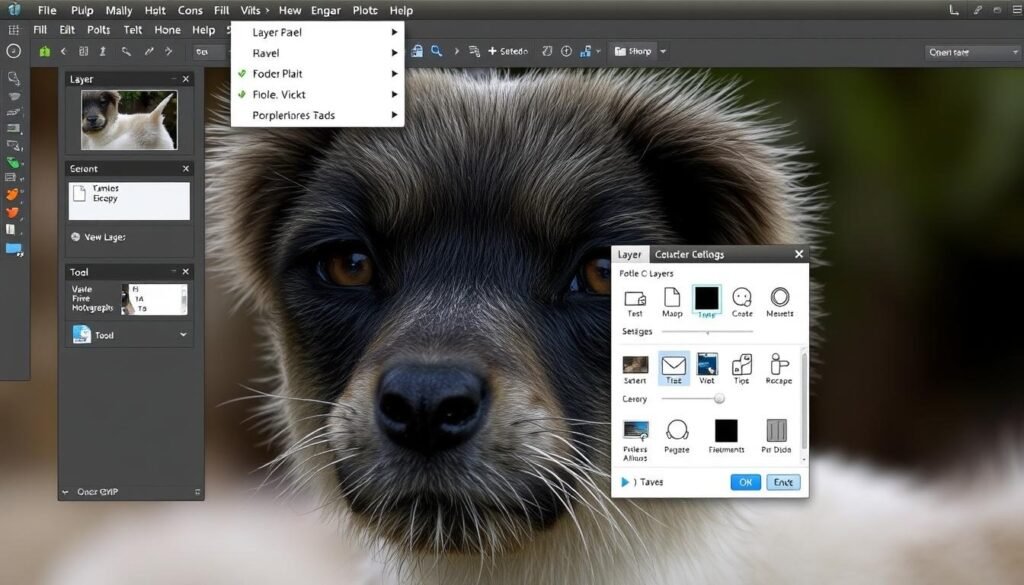
GIMP (GNU Image Manipulation Program) is a powerful, completely free and open-source alternative to Adobe Photoshop. While it has a steeper learning curve than template-based tools, it offers comprehensive photo editing and raster graphics capabilities without any cost.
Key Features
- Comprehensive photo editing tools
- Layer-based editing for complex compositions
- Extensive filter collection for special effects
- Support for various file formats including PSD
- Customizable interface
- Plugin support to extend functionality
Best For
GIMP is ideal for beginners who want to learn serious photo editing without investing in expensive software. It’s perfect for photo retouching, digital painting, creating image compositions, and basic graphic design tasks.
Pros
- Completely free with no limitations
- Available for Windows, Mac, and Linux
- Regular updates and active community
- Powerful features comparable to paid alternatives
Cons
- Steeper learning curve than template-based tools
- Interface can feel dated compared to modern software
- Less intuitive for complete beginners
Pricing
GIMP is completely free and open-source software. There are no premium versions or subscription fees.
Professional photo editing at zero cost
Dive into serious photo editing with this powerful, free alternative to Photoshop. Perfect for learning professional editing techniques.
5. Inkscape: Free Vector Graphics for Beginners
4.3
Ease of Use: 3.6
Good for vector graphics
Features: 4.5
Value for Money: 5.0
Growth Potential: 4.4
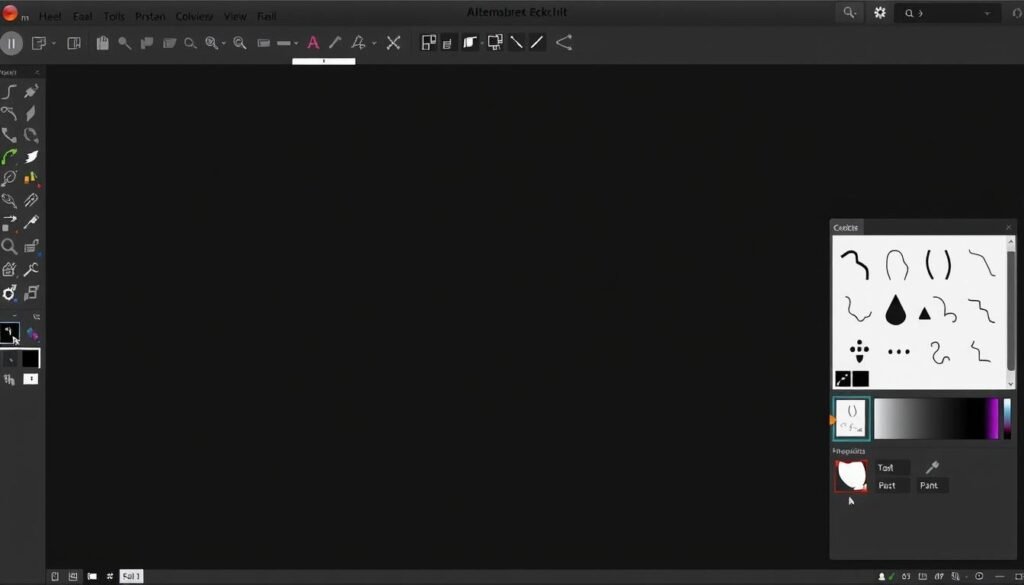
Inkscape is a free, open-source vector graphics editor that serves as an excellent alternative to Adobe Illustrator. It’s perfect for creating logos, illustrations, icons, and other scalable graphics without any cost.
Key Features
- Comprehensive vector editing tools
- Support for SVG file format
- Node editing for precise shape control
- Path effects and extensions
- Text tools with full SVG font support
- Object creation and manipulation tools
Best For
Inkscape is ideal for beginners interested in creating logos, icons, illustrations, diagrams, and other vector graphics. It’s perfect for design students, hobbyists, and anyone looking to learn vector design without investing in expensive software.
Pros
- Completely free with professional-grade features
- Available for Windows, Mac, and Linux
- Active community with plenty of tutorials
- Native SVG support for web graphics
Cons
- Steeper learning curve than template-based tools
- Interface may feel less polished than commercial alternatives
- Performance can be slower with complex designs
Pricing
Inkscape is completely free and open-source software. There are no premium versions or subscription fees.
Create professional vector graphics for free
Start creating scalable logos, illustrations, and icons with this powerful, free alternative to Illustrator.
6. Affinity Designer: Professional Vector Design at a One-Time Cost
4.7
Excellent for vector design
Ease of Use: 4.2
Features: 4.7
Value for Money: 4.8
Growth Potential: 4.8
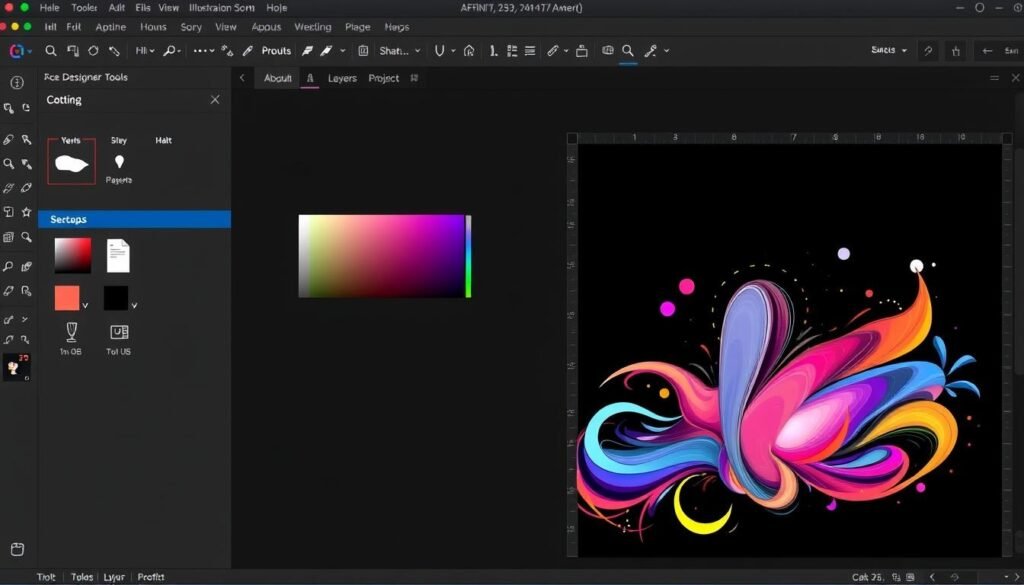
Affinity Designer offers professional-grade vector design capabilities at a fraction of the cost of Adobe Illustrator. With a one-time purchase model instead of a subscription, it provides excellent value for beginners who are ready to invest in their design journey.
Key Features
- Professional vector design tools
- Seamless switching between vector and pixel workspaces
- Advanced typography controls
- Powerful pen and node tools
- Unlimited artboards
- Compatibility with industry-standard file formats
Best For
Affinity Designer is perfect for beginners who are serious about learning professional vector design. It’s ideal for creating logos, illustrations, icons, UI designs, and print materials. The software is suitable for freelancers, students, and hobbyists who want professional tools without a subscription.
Pros
- One-time purchase with free updates
- Professional-grade features at an affordable price
- Excellent performance even with complex designs
- Compatible with Adobe file formats
Cons
- Steeper learning curve than template-based tools
- Smaller community compared to Adobe products
- Limited template resources for beginners
Pricing
Affinity Designer is available for a one-time purchase of $69.99 for desktop (Windows/Mac) and $21.99 for iPad. No subscription required.
Professional vector design without subscription fees
Invest in your design future with professional-grade vector tools at a one-time cost. Free trial available to test before you buy.
7. Pixlr: Free Online Photo Editor for Quick Edits
4.4
Great for quick edits
Ease of Use: 4.4
Features: 4.2
Value for Money: 4.7
Growth Potential4.0
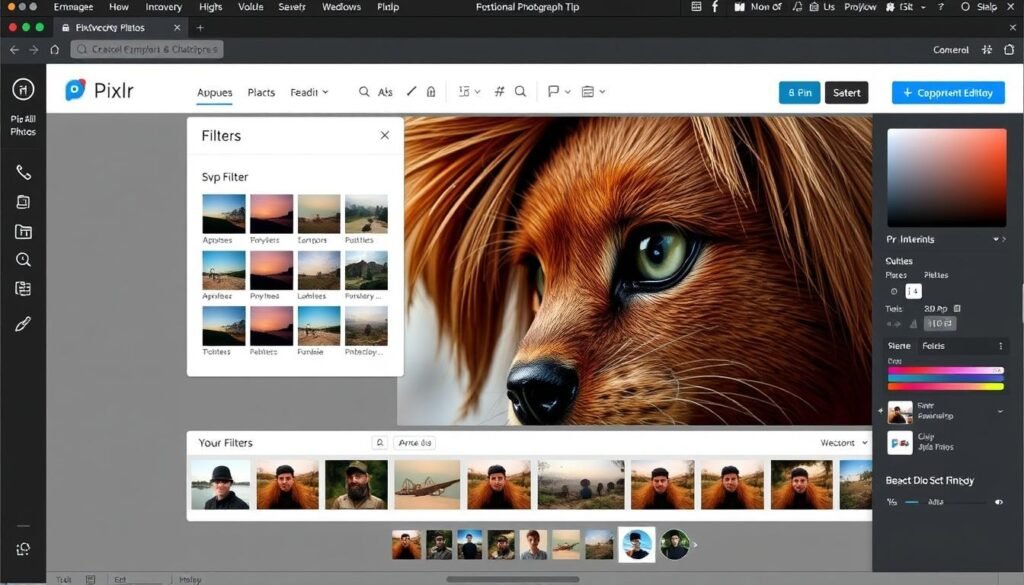
Pixlr is a browser-based photo editor that offers impressive capabilities without requiring any downloads. It provides both a simplified editor (Pixlr X) for beginners and a more advanced editor (Pixlr E) for those ready to tackle more complex edits.
Key Features
- Basic and advanced editing modes
- Layer support for complex compositions
- One-click AI-powered tools
- Filters and effects library
- Text and drawing tools
- Template library for quick designs
Best For
Pixlr is perfect for beginners who need to make quick photo edits or simple designs without installing software. It’s ideal for social media images, basic photo retouching, and creating simple graphics when you don’t have access to desktop software.
Pros
- Works in any browser with no installation
- Free version with substantial features
- Intuitive interface similar to Photoshop
- Mobile apps available for on-the-go editing
Cons
- Free version shows ads
- Limited to online use unless you pay for desktop version
- Less powerful than dedicated desktop software
Pricing
Pixlr offers a free version with ads and basic features. Premium plans start at $7.99/month for advanced features, no ads, and more resources.
Edit photos anywhere, anytime
Start creating and editing images right in your browser with this powerful, free online editor. No download required.
Comparison: Finding the Right Graphic Design Software for Your Needs
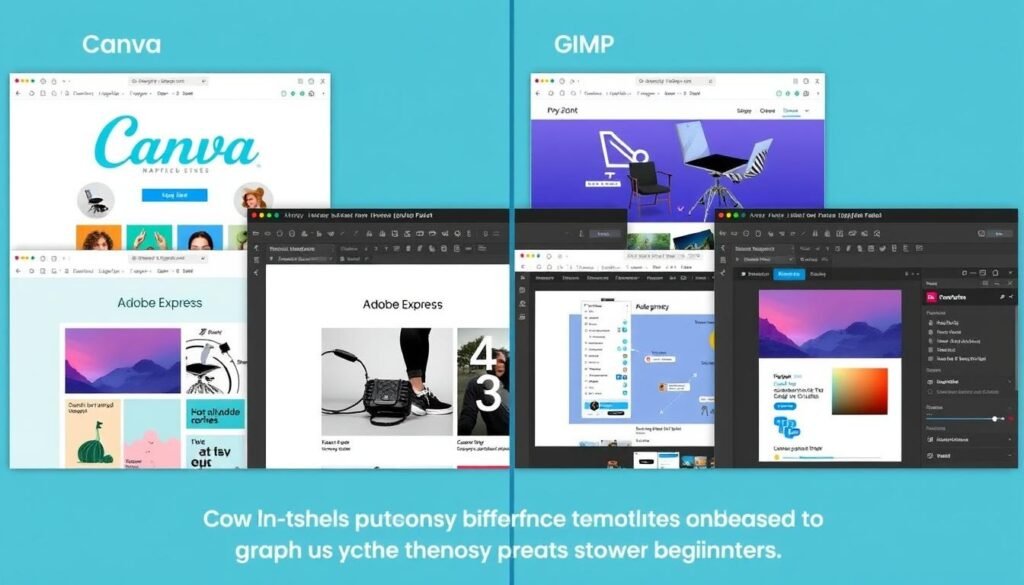
Choosing the right graphic design software depends on your specific needs, goals, and learning style. Here’s a quick comparison to help you decide:
| Software | Best For | Learning Curve | Cost | Platform |
| Canva | Social media, presentations, marketing materials | Very Easy | Free / $12.99 per month | Web, iOS, Android |
| Adobe Express | Social media, web graphics, simple animations | Easy | Free / $9.99 per month | Web, iOS, Android |
| Figma | UI/UX design, web design, prototyping | Moderate | Free / $12 per editor per month | Web, Windows, Mac |
| GIMP | Photo editing, digital painting, raster graphics | Moderate-Difficult | Free | Windows, Mac, Linux |
| Inkscape | Logos, icons, illustrations, vector graphics | Moderate-Difficult | Free | Windows, Mac, Linux |
| Affinity Designer | Professional vector design, illustrations, print | Moderate | $69.99 one-time | Windows, Mac, iPad |
| Pixlr | Quick photo edits, simple designs | Easy | Free / $7.99 per month | Web, iOS, Android |
How to Choose the Right Graphic Design Software for Your Needs

With so many options available, choosing the right graphic design software can feel overwhelming. Here are some key factors to consider when making your decision:
Consider Your Design Goals
Social Media & Marketing
If you primarily need to create social media graphics, presentations, or marketing materials, template-based tools like Canva or Adobe Express are your best bet.
Logo & Brand Design
For creating logos, icons, and other vector graphics, consider Inkscape (free) or Affinity Designer (paid) to get started with professional vector tools.
Photo Editing
If your focus is on editing and enhancing photos, GIMP (free) or Pixlr (free/paid) offer powerful tools for beginners without a significant investment.
Assess Your Technical Comfort
Be honest about your technical skills and willingness to learn. Template-based tools like Canva offer instant gratification, while professional software like GIMP or Inkscape require more time to master but offer greater creative control.
Consider Your Budget
Your budget will significantly impact your options. Fortunately, there are excellent free alternatives in every category:
- No budget: Canva (free), GIMP, Inkscape, Pixlr (free)
- Small budget: Canva Pro, Adobe Express, Pixlr Premium
- One-time investment: Affinity Designer/Photo
Think About Long-Term Growth
Consider whether you want to develop professional design skills or simply need to create occasional graphics. If you’re serious about learning design, investing time in software with room to grow (like Figma or Affinity Designer) may be worthwhile.
Pro Tip: Most of these programs offer free trials or free versions. Try several options before com
mitting to see which interface and workflow feels most intuitive to you.
Read Also: Social Media Management Tips for 2025
Getting Started: Tips for Beginners
Once you’ve chosen your graphic design software, here are some tips to help you get started on your design journey:
Start with Tutorials
Every software on our list has official tutorials, YouTube videos, and community resources. Spend time learning the basic functions before diving into complex projects.
Use Templates as Learning Tools
With template-based software like Canva or Adobe Express, study how templates are constructed. Modify existing templates to understand design principles and tool functionality.
Join Design Communities
Connect with other beginners and experienced designers through forums, social media groups, or platforms like Behance and Dribbble. These communities can provide feedback, inspiration, and support.
Practice Regularly
Consistency is key to developing design skills. Set aside regular time to practice, even if it’s just 15-30 minutes a day.
Start with Personal Projects
Begin with low-pressure projects like designing social media posts for your personal accounts, creating cards for friends, or redesigning your resume.
“Design is not just what it looks like and feels like. Design is how it works.” – Steve Jobs
Learning Resources: Most software providers offer free learning resources. Check out Canva Design School, Adobe’s tutorials, Figma’s learning center, and the extensive GIMP and Inkscape documentation to accelerate your learning.
Conclusion: Start Your Design Journey Today
Finding the best graphic design software for beginners is about balancing ease of use, affordability, and room for growth. Whether you choose the template-driven simplicity of Canva, the professional capabilities of Affinity Designer, or the free power of GIMP or Inkscape, the most important step is to start creating.
Remember that every professional designer was once a beginner. The tools you choose are less important than your willingness to learn, practice, and develop your creative eye. Start with software that matches your current needs and skill level, then expand your toolkit as your skills and requirements grow.
The world of graphic design is more accessible than ever before, with powerful tools available at every price point. Your design journey starts with a single project—so choose your software, follow some tutorials, and begin creating today!